
Cliparr supports burning in supported subtitle tracks provided by your media player. Customize position, style, and use any font on your system.
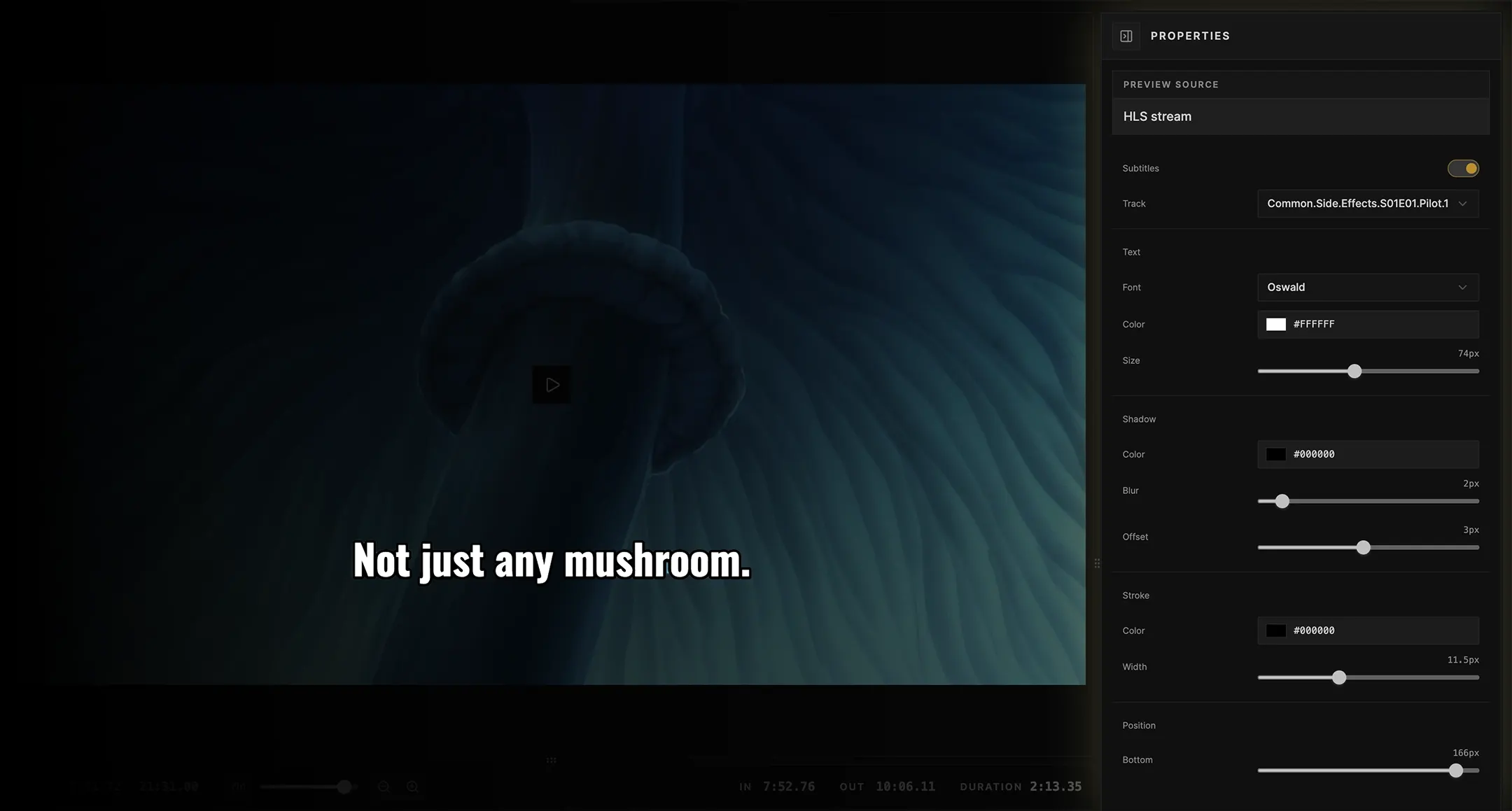
Supported tracks
Cliparr supports subtitle burn-in when the selected track is a downloadable text subtitle track. Supported text formats include SRT/SubRip, WebVTT, ASS/SSA, TTML, SMI, and related text tracks exposed by Plex or Jellyfin.
Image-based subtitle formats, such as PGS or VobSub, are visible when the provider reports them, but they cannot be burned in today.
Provider notes
Jellyfin can usually expose downloadable text subtitle tracks directly from the selected media source.
Plex sidecar text subtitles can usually be downloaded directly. Some embedded Plex text subtitles must be selected in Plex first so Plex exposes a subtitle content stream that Cliparr can fetch.
Plex: Adding Local Subtitles to Your Media
Styling
When burn-in is enabled, the subtitle panel controls how text is rendered into the exported video:
- Font family.
- Font color and size.
- Shadow color, blur, and vertical offset.
- Stroke color and width.
- Bottom margin.
Style settings are saved in your browser. They apply to future exports from the same browser profile.
Local fonts
Cliparr includes a small set of common font options. Browsers that support local font access can also offer installed fonts after you grant permission. Local font availability depends on the browser, operating system, and site permissions.
Export behavior
Subtitle cues are trimmed to the selected clip range before export. If subtitles are still loading, or if the selected track does not expose downloadable text cues, Cliparr waits or blocks the export with a message instead of producing a clip with missing subtitles.